
The Type Editors
Most of MythTapestry is about filling your world in. This page is about the screens where you decide what shape it has — what a Character is, what a Chapter is, what it means for two things to be connected.
You can go a long way without opening any of them. The defaults are sensible, and a world that never touches its types still works. But the moment you want a Character to have a Sworn Oath field, or a Location to track who currently holds it, this is where you go.
The three editors
Section titled “The three editors”Structure lives in three places, and they rarely overlap.
| Editor | Governs | Where |
|---|---|---|
| Entity types | What a Character, Location, Faction or any other thing in your world is made of — its fields, subtypes, form layout, and rules | Manage → Entity Types → pick a type |
| Content types | What kinds of container and writing your world holds — Books, Chapters, Scenes, Session Logs | Manage → Content Types |
| Relationship types | What kinds of connection can exist — Serves, Inhabits, Rivals — and which types may sit at each end | Manage → Relationship Types |
The rest of this page tours the first one, because it is the largest and the other two follow the same habits. Content types and relationship types have their own pages.
The entity type editor
Section titled “The entity type editor”Open Entity Types, pick a type, and you land on a screen with four tabs. They’re in the order you’d usually need them.
| Tab | What you do there |
|---|---|
| Schema | Add, edit, remove and preview the type’s fields |
| Subtypes | Split the type into sub-categories — Wizard, Knight, Merchant — each able to add fields of its own. See Subtypes |
| Layout | Arrange the fields into tabs and sections so the entity form isn’t one long wall. See Layouts |
| Behaviors | Rules that fire as people fill the form — hide a field unless another is set, calculate one value from others. See Behaviour Rules |
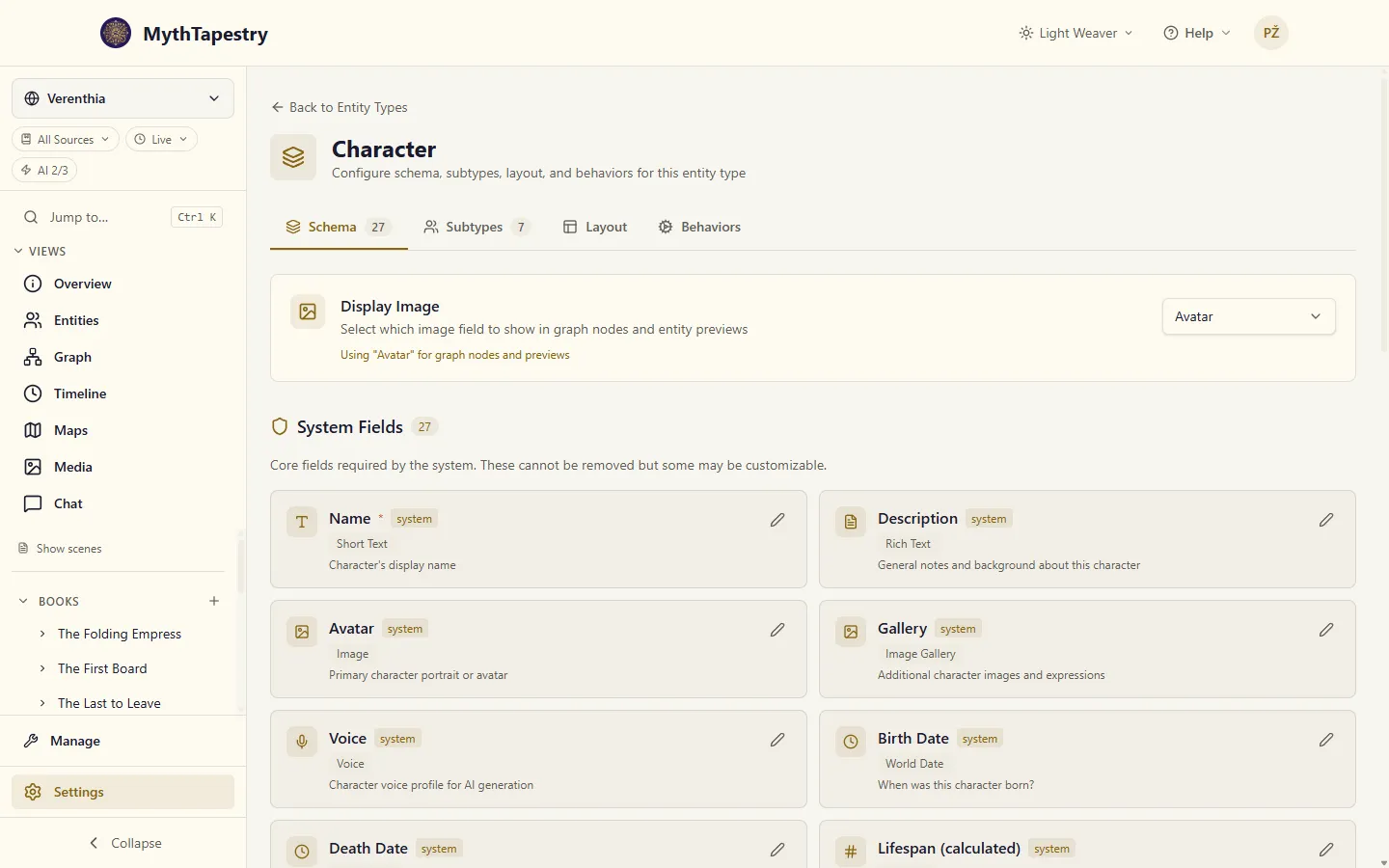
A type is usable after Schema alone. The other three tabs are refinements, and it’s fair to ignore them until the type has been in use long enough to annoy you.
The Schema tab
Section titled “The Schema tab”Fields come in two groups, and the difference matters.
System Fields are the ones every entity has because the app needs them — name chief among them. You can’t remove these, and most you can’t rename. They’re listed so you know they exist and don’t add a duplicate.
Custom Fields are yours. This is where Sworn Oath goes.
-
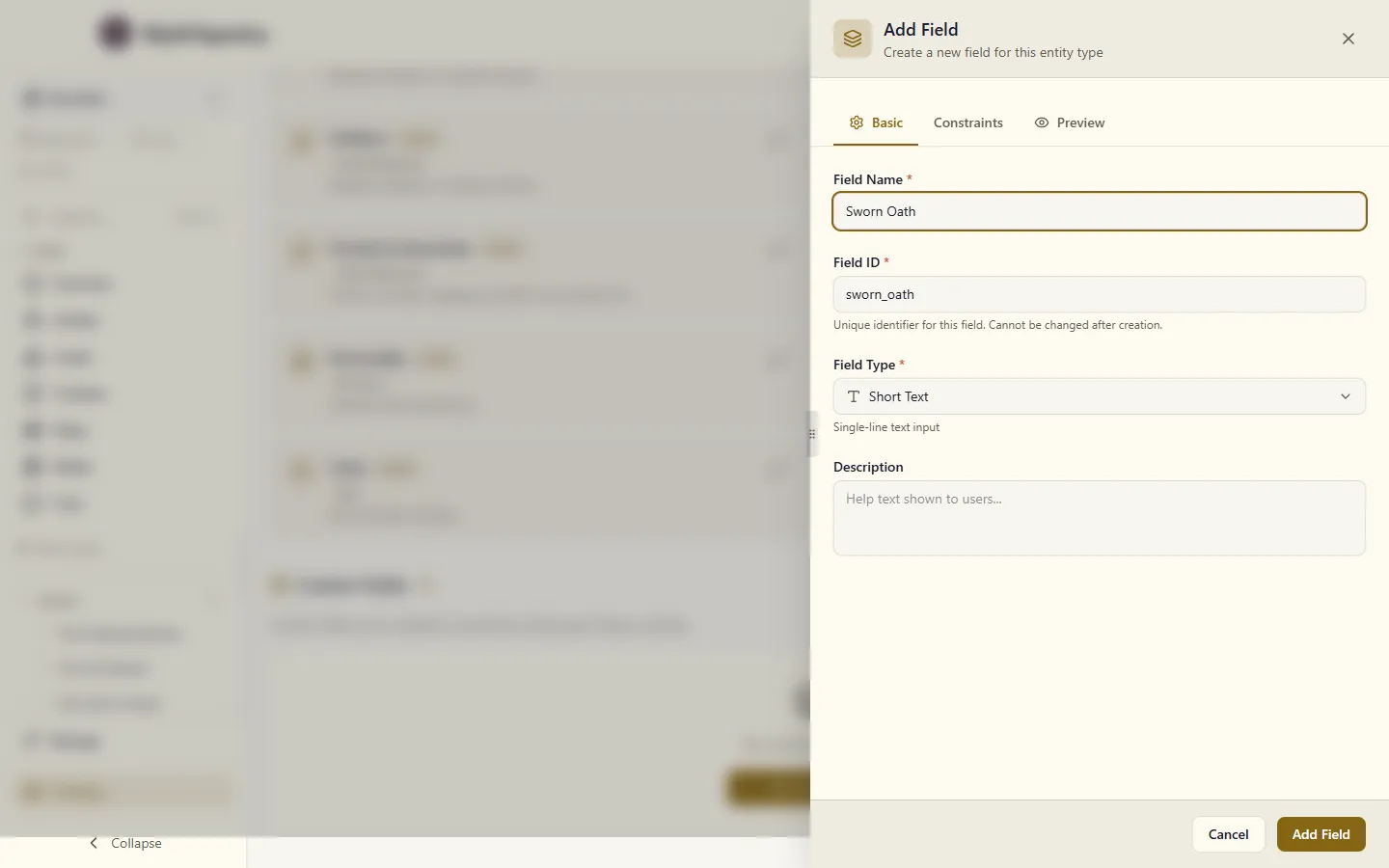
Click Add Field.
-
Pick a field kind. Fields & Data is the guide to choosing well — the short version is that the kind decides what the input looks like and what can be stored in it.
-
Give it a name. The internal ID is generated from the name; leave it alone unless you’re deliberately matching a field on another type.
-
Set any rules it needs on the Constraints tab (below).
-
Save. The field appears on every entity of this type immediately, existing ones included — empty, not broken.
There’s also a Display Image setting at the top of the tab. If your type has an image field, this chooses which one shows up as the picture on graph nodes and in entity previews. A Character with both a portrait and a full-body reference probably wants the portrait here.
Custom fields can be dragged into a different order, and the order sticks. It decides how the fields read on an entity and what order they come out in when you export, anywhere the Layout tab doesn’t arrange them explicitly. System fields stay where they are.
Editing one field
Section titled “Editing one field”Opening a field gives you two tabs and a live preview beside them.
Basic is the field’s identity: its name, its kind, the description shown as help text under the input, and its default value. Write the description for someone who has never seen your world — “Use the era abbreviation, e.g. 412 AC” earns its place; “The date of birth” under a field called Date of Birth does not.
Constraints is the rules. Which rules you’re offered depends on the field’s kind, because a minimum length means nothing on a colour swatch.
The Live Preview renders the field exactly as someone creating an entity will see it, updating as you type. It’s the fastest way to catch a field that reads clearly to you and cryptically to everyone else.
What the Constraints tab offers
Section titled “What the Constraints tab offers”Every field kind gets the general rules:
| Rule | What it does |
|---|---|
| Required | The entity can’t be saved without it |
| Unique | Flags the value as one-of-a-kind. Not yet enforced — the app doesn’t stop you saving a duplicate |
| Immutable | Can’t be changed once the entity exists |
Then, depending on the kind:
| If the field is… | You also get |
|---|---|
| Short text | Minimum length, maximum length, and a pattern the value must match |
| Long text, Rich text | Minimum and maximum length |
| Whole number | Minimum and maximum value |
| Decimal, Number | Minimum, maximum, and step (e.g. 0.5 to allow halves) |
| Single choice, Select, Multiple choice | The list of options, and optional display labels so the stored value and the shown text can differ |
| Multiple choice, Tags, Array, Image gallery | Minimum and maximum number of entries |
| Array, Multiple entity links | Whether entries must be unique |
| Entity links of any kind | Which entity types and subtypes are allowed as targets, and which relationship type the link creates — these live in their own picker rather than the Constraints list |
Kinds not listed — toggles, dates, colours, coordinates, single images, audio, voice, JSON — take the general rules only. That isn’t an oversight: there’s no sensible minimum length for a colour.
Removing a field
Section titled “Removing a field”Deleting a custom field asks you to confirm, and it means it: the field goes from the type, and the values entities had stored in it go with it. There’s no undo.
If you’re unsure, it’s usually better to leave the field and stop using it. An empty field costs nothing but a line on a form; a deleted one costs everything anyone wrote in it.
Content types
Section titled “Content types”Manage → Content Types governs the containers your writing lives in — whether your world is organised into Books and Chapters, Campaigns and Sessions, or something you invent. Nothing about that hierarchy is fixed by the app; it’s yours to define.
See Containers and units.
Relationship types
Section titled “Relationship types”Manage → Relationship Types is the catalogue of connections your world allows — Serves, Inhabits, Rivals — along with which entity types may appear at each end, and what the connection is called when read in each direction.
This one matters more than it looks. Entity link fields can’t be saved without choosing a relationship type, so an empty catalogue blocks a field you’re trying to build. If nothing in the list fits what you’re modelling, create the relationship type first.
See Relationship types.