
Import from Azgaar
If you’ve already mapped a world in Azgaar’s Fantasy Map Generator, you don’t have to start over by hand. MythTapestry can read an Azgaar export and turn it into a map full of real places, nations, cultures, religions, and trade routes — all cross-linked and ready to write into.
Export your map from Azgaar
Section titled “Export your map from Azgaar”You need two files out of Azgaar — a data file and a picture — and both come from the same place. In Azgaar, open the Layers panel and click Export along the bottom (next to Save and Load). The Export map data window opens.
-
Under Export To JSON, click full. This downloads a
.jsonfile describing every city, route, and culture on your map.Use full — the other buttons (minimal, pack cells, grid cells) leave out data the import needs.
-
Under Download image, click .png. This downloads the map picture that becomes your new map’s background. Scale 1 is usually plenty — only raise the PNG / JPEG scale if you want a crisper background, and keep the file under 50 MB (very high scales produce huge files the import won’t accept).
-
You can ignore the Export to GeoJSON section — the import doesn’t use it.
Keep both files handy — the import asks for the .json and the image together.
Where to import
Section titled “Where to import”There are two moments you can bring an Azgaar map in:
- While creating a new world. On the last step of the new-world wizard, choose Import from Azgaar instead of generating demo content or starting empty.
- Any time afterward, from an existing world’s Maps page — look for the Import from Azgaar button.
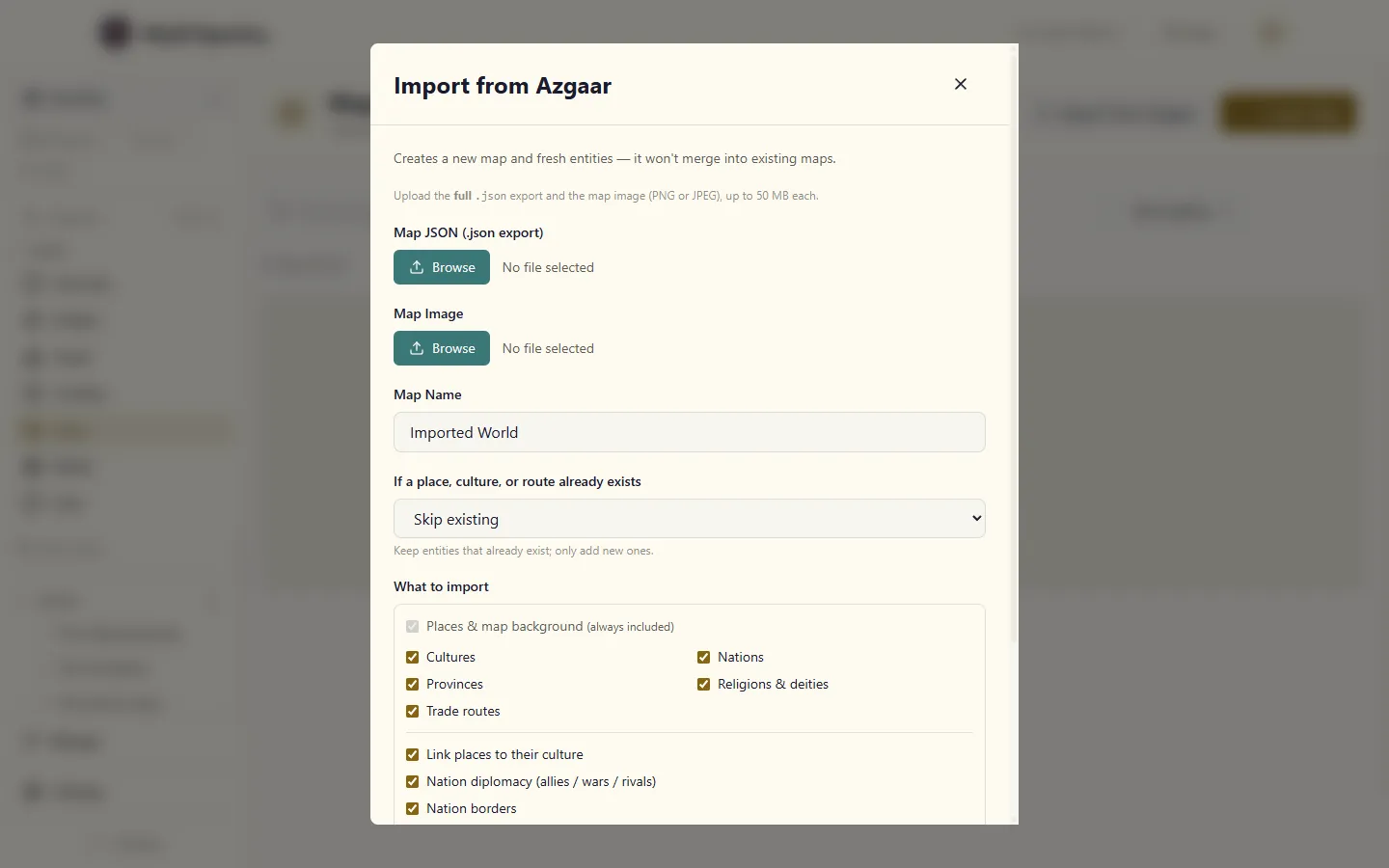
Either way opens the same dialog: pick your JSON file and your image, give the map a name, and import. The name starts as the one your map has in Azgaar, so an export of Saltmarch arrives as Saltmarch; type over it if you’d rather call it something else. If you’ve typed a name before choosing the file, yours is kept.
What comes in
Section titled “What comes in”- Your Azgaar cities and towns become pinned places on a brand-new map, sitting right where they were on the Azgaar picture — each tagged with its population, notable features (walls, ports, temples), and settled-by culture.
- Nations and their provinces come across as organisations, and every place is linked to the nation that controls it — so you can open a nation and see the cities within it. Nations also carry their type, size, founding culture and capital.
- The political web comes with them: nations are linked to their allies, enemies and rivals (from the map’s diplomacy), and to the nations they border.
- Each nation also becomes a clickable region shape traced from its territory — click a region and choose Open to jump to the nation, or Reshape on map to reshape it. A nation split across separate landmasses comes in as one shape per piece. By default the shapes are invisible until you hover (the imported picture already shows the colours); flip on Tint regions in the import options to fill them with each nation’s colour instead. Reshape, recolour or delete a region like any other region.
- Cultures come across as entries of their own, and each place is linked to the culture that settled it. Where a culture or religion descends from another, that lineage is linked too.
- Religions arrive as belief systems, tied back to the culture they grew from, with their chief deity as a linked entity of its own.
- Trade routes — roads, shipping lanes, and the rest — reconnect the same places they linked in Azgaar, with real distances along each leg.
- The Azgaar map picture itself becomes the new map’s background image.
Choosing what to import
Section titled “Choosing what to import”A full Azgaar world can be hundreds of settlements and thousands of links. The import dialog lets you pick what to bring across with a set of toggles — turn off nations, religions, routes, diplomacy, borders, or any of the connections you don’t want. Once you choose your JSON file, each toggle shows exactly how many entities or connections it would import, so you can see what you’re signing up for before you commit. Places and the map image are always imported (they’re the foundation everything else hangs off). If you switch off something a connection depends on — nations, say — the connections that need it (diplomacy, borders, capitals) grey out automatically, so you can’t end up with links pointing at nothing. While the import runs, a progress bar narrates each phase — founding cultures, raising nations, knitting diplomacy — so you can tell a big map is working, not stuck.
Trimming small settlements
Section titled “Trimming small settlements”Azgaar maps often have far more tiny villages and hamlets than you’ll ever write about. Before you import, a slider lets you set a minimum population — anything smaller is left out of the import. Capitals always come in, no matter how small, since they matter to the story regardless of size.
Re-importing the same map
Section titled “Re-importing the same map”Import remembers where each entity came from, so re-importing the same Azgaar map (even after you’ve edited it in Azgaar) recognises the places, nations, cultures and so on you already brought in rather than duplicating them. What happens to the matches depends on the conflict setting: Skip leaves them untouched, Update refreshes their fields and descriptions, Replace rebuilds them from scratch. Either way, any connections that were missing get filled in — so if you import again after we’ve added a new kind of link, a re-import stitches it onto your existing world instead of doing nothing.
What to know before you import
Section titled “What to know before you import”Next steps
Section titled “Next steps”- Maps Overview — how the map you land on actually works.
- Placing Locations & Regions — add anything Azgaar didn’t cover, or draw the borders it didn’t bring across.
- Trade Routes — extend or edit the routes that came in.