
Entity Assist
When you write a scene that mentions a character, a place, or any other entity, the details you put into prose rarely make it back into your world tracker on their own. Entity Assist closes that gap. It reads the scene (or a set of scenes), looks at the entity’s existing fields, and proposes values you can accept one at a time — never silently overwriting anything you’ve written.
Entity Assist is always opt-in. Nothing runs until you click a button. Every suggestion arrives with the snippet of writing it came from, so you can check before you accept.
Two ways to use it
Section titled “Two ways to use it”Fill with AI — when you create a new entity from a scene
Section titled “Fill with AI — when you create a new entity from a scene”While writing a scene, you can create an entity on the fly — say, a new character who just walked into the room. The quick-create dialog includes a Fill with AI button that reads the current scene and proposes values for the entity’s fields.
This is for the moment when you’ve described someone in your prose (“a wiry, grey-eyed scout in a dust-caked cloak”) and don’t want to retype that into the entity form. Fill with AI offers it back to you as one-click field values.
Suggest Updates — for entities that already exist
Section titled “Suggest Updates — for entities that already exist”Open any entity’s edit page and you’ll see a Suggest Updates button next to Save Changes. Click it and Entity Assist looks across every scene that mentions this entity — not just the one you’re reading — and proposes new or refined field values based on what those scenes say.
This is for the moment when a character has been in twelve scenes, picked up a new title, lost a relative, and started carrying a different sword, and your entity page still says what it said three months ago.
What you see
Section titled “What you see”Both flows produce the same kind of result: an AI field suggestions panel at the top of the form, naming how many suggestions are waiting and which model wrote them. Each row shows:
- The field name (Role, Also Known As, Description, …)
- Badges — what the change would do (ADD fills an empty field, REPLACE overwrites one you’ve filled, CONFIRM agrees with what you’ve already put, CONFLICT means your scenes disagree), how confident the AI is, and a scene chip showing how many scenes it was drawn from (click it to see which ones and jump to any of them)
- The proposed value
- The line of your writing it was drawn from, in quotes
- A ✓ to accept and an ✕ to reject
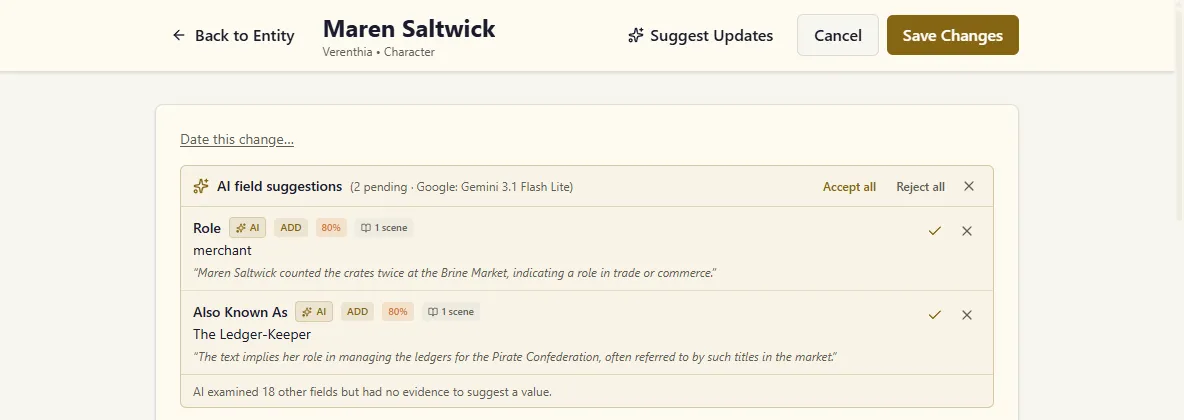
The footer tells you how many other fields it read and left alone, so an empty field it skipped was a choice, not a failure.
What it won’t suggest
Section titled “What it won’t suggest”Every suggestion has to come from your writing, and a few rules keep it there:
- A link only to something the scene names. Fields that point at other entities — Birthplace, Friends & Associates, Members — only ever suggest an entity your world already has and the scene actually mentions, by its full name or its first name (“Lira” for Lira Vey). A title is not a first name: “Sister Agnes” doesn’t count as naming Sister Maud. A scene that says “Sister Maud kept the chapel” won’t get Edda Marsh suggested as a member just because Maud isn’t in your world yet.
- Not from the name alone. “Brother Tamsin” doesn’t make him a priest. If the scene you’re in doesn’t mention the entity, expect little or nothing.
- Not a fate the scene doesn’t state. “Lost to the hounds” gives a status of Unknown or Missing, not Deceased.
- It checks what you’ve already typed. If your draft says he/him and the scene calls her “a girl”, it suggests the correction — marked REPLACE, with the line that shows why — and you choose.
Accept writes the value into the form. You still have to Save the entity for the change to land — Entity Assist never writes to your world without one more click from you.
There are also Accept all and Reject all buttons at the top of the panel for when you want to move fast.
Choosing which scenes to read (Suggest Updates only)
Section titled “Choosing which scenes to read (Suggest Updates only)”When you click Suggest Updates, a dialog opens listing every scene that has a confirmed mention of this entity, grouped by chapter or book. By default everything is selected. You can:
- Untick individual scenes you don’t want included
- Untick a whole chapter or book at once
- Use Select all / Select none at the top
Then click Run Entity Assist.
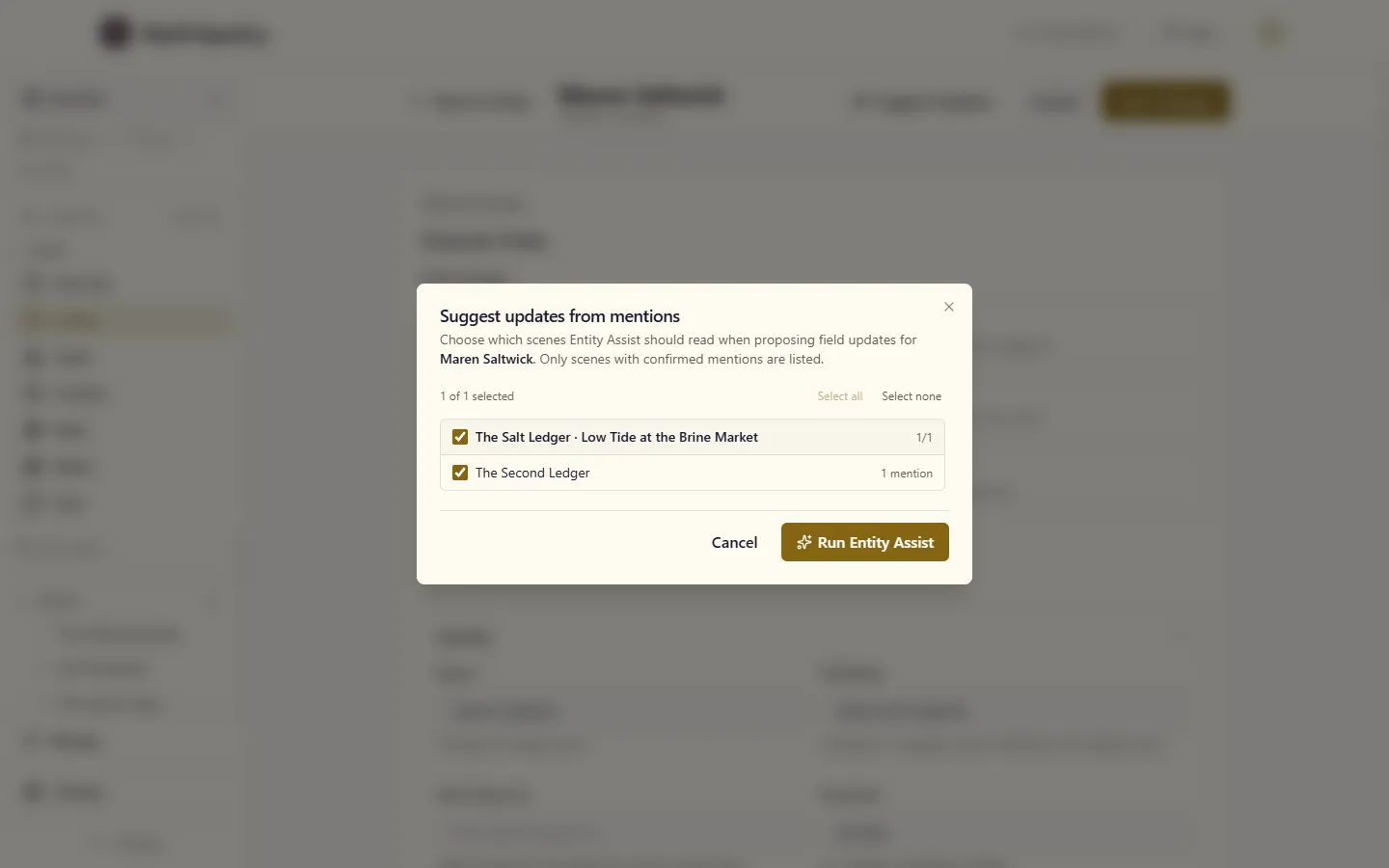
A scene only appears in this list if it has at least one confirmed mention of the entity (suggestions don’t count — confirm them in the scene editor first). If there are no confirmed mentions yet, the button is disabled and the tooltip tells you so.
What it costs
Section titled “What it costs”Each click of Fill with AI or Suggest Updates uses one Entity Assist operation from your monthly allowance, however many scenes it reads. When the selected scenes are long, Suggest Updates first summarises each scene down to what it says about this entity, then works from those summaries. The summaries are part of the same click: they don’t use your AI Summaries allowance.
Suggest Updates summarises at most 40 scenes per click. If you select more, it uses the 40 with the most confirmed mentions of the entity. Mira, who appears in 120 scenes, gets her update from the 40 scenes that mention her most often. To have it look at a particular stretch of the story instead, select just those scenes.
If the AI’s answer comes back in a form MythTapestry can’t read, the click isn’t charged.
Why suggestions might not appear
Section titled “Why suggestions might not appear”A run can come back empty. Reasons you’ll see in practice:
- Nothing new to add — the scene only mentions the entity in passing, or only repeats things already on the entity page.
- No confirmed mentions — Suggest Updates needs confirmed mentions to know which scenes to read. Open the relevant scenes and confirm the mentions first.
- Quota exhausted — you’ve used your Entity Assist allowance for the period. Wait for the reset or upgrade your tier.
- The model refused — occasionally the model returns nothing usable. That run isn’t charged; try again or switch model in model preferences.
The panel will tell you which of these happened, not just silently produce nothing.
How it differs from related features
Section titled “How it differs from related features”| Feature | What it does | When to use |
|---|---|---|
| Entity Detection | Finds which entities are mentioned in a scene | After writing, to link scenes to your world |
| Relationship Suggestions | Proposes new or ended relationships between entities | After writing, to keep the graph current |
| Entity Assist | Proposes field values for one entity (new or existing) | When the entity card is out of date with the prose |
| AI Summaries | Produces a recap of a whole scene | When you want a quick scan of what a scene covers |
Entity Assist is the only one of these that writes onto an entity card. The others touch mentions, relationships, and summaries respectively.
Reviewing what you accepted
Section titled “Reviewing what you accepted”Accepted suggestions appear in the form with the value the AI proposed — exactly as if you’d typed it. You can still edit it, replace it, or revert it before saving. The AI badge on the panel row stays in place after you accept, so you can scroll the panel and see what came from suggestions versus what you wrote.
Nothing about the suggestion is stored on the entity once you save — there’s no “this field came from AI” marker on the entity itself. If you want a record, leave a note in the entity’s description or use the scene chip on the panel to remember where the value came from.