
Entity Timeline
The entity timeline is your “what happened to this one thing, in order” view. Open any entity, click the Timeline tab, and you’ll see its life laid out three ways.
The three views show the same data — pick whichever reads best for the question you’re asking.
Three layouts
Section titled “Three layouts”List view
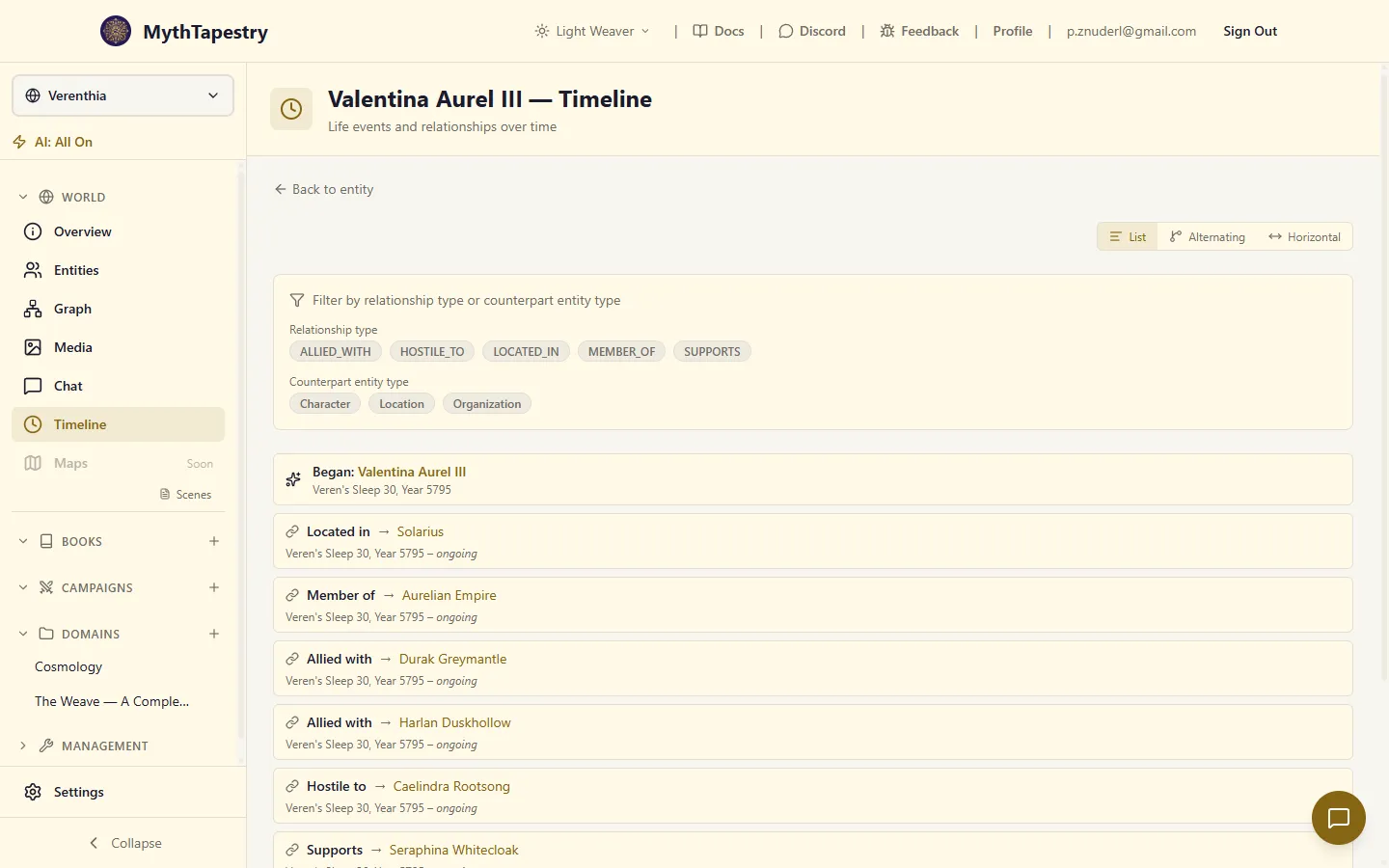
Section titled “List view”Plain chronological cards, oldest to newest. Best when you want to skim everything quickly or when the entity only has a handful of relationships.
Each card shows the relationship type, who it’s with, and the period it covered. Life events (the entity beginning or ending) get their own card with a Sparkles or Skull icon.
Click any card to open its details in the right rail.
Alternating view
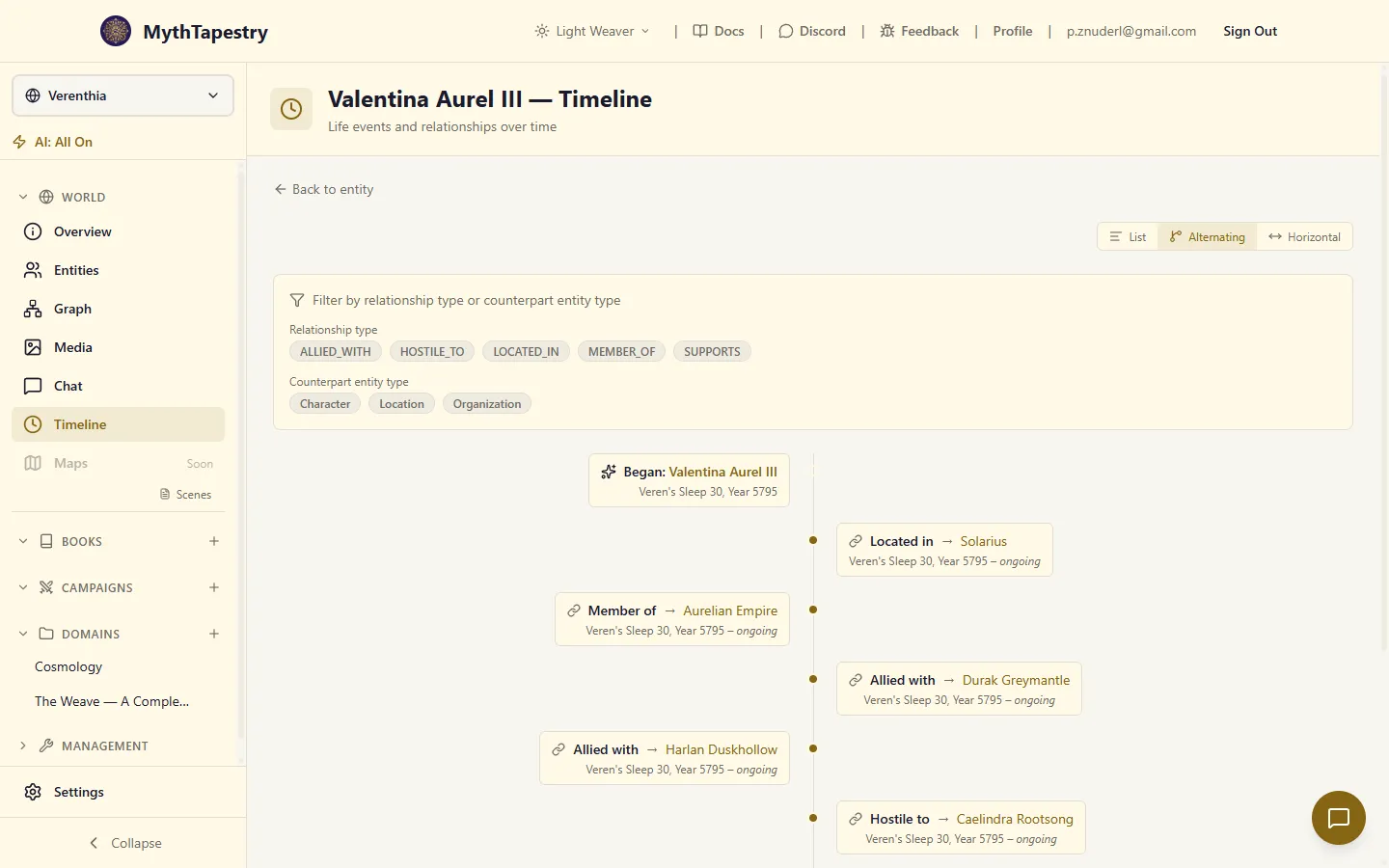
Section titled “Alternating view”A vertical centre line with cards alternating left and right of it — the story-arc layout. Best for narrative reading: characters with rich histories, organisations with lots of allies and rivals over time.
Same data as the list view, just laid out for a more cinematic read.
Horizontal view
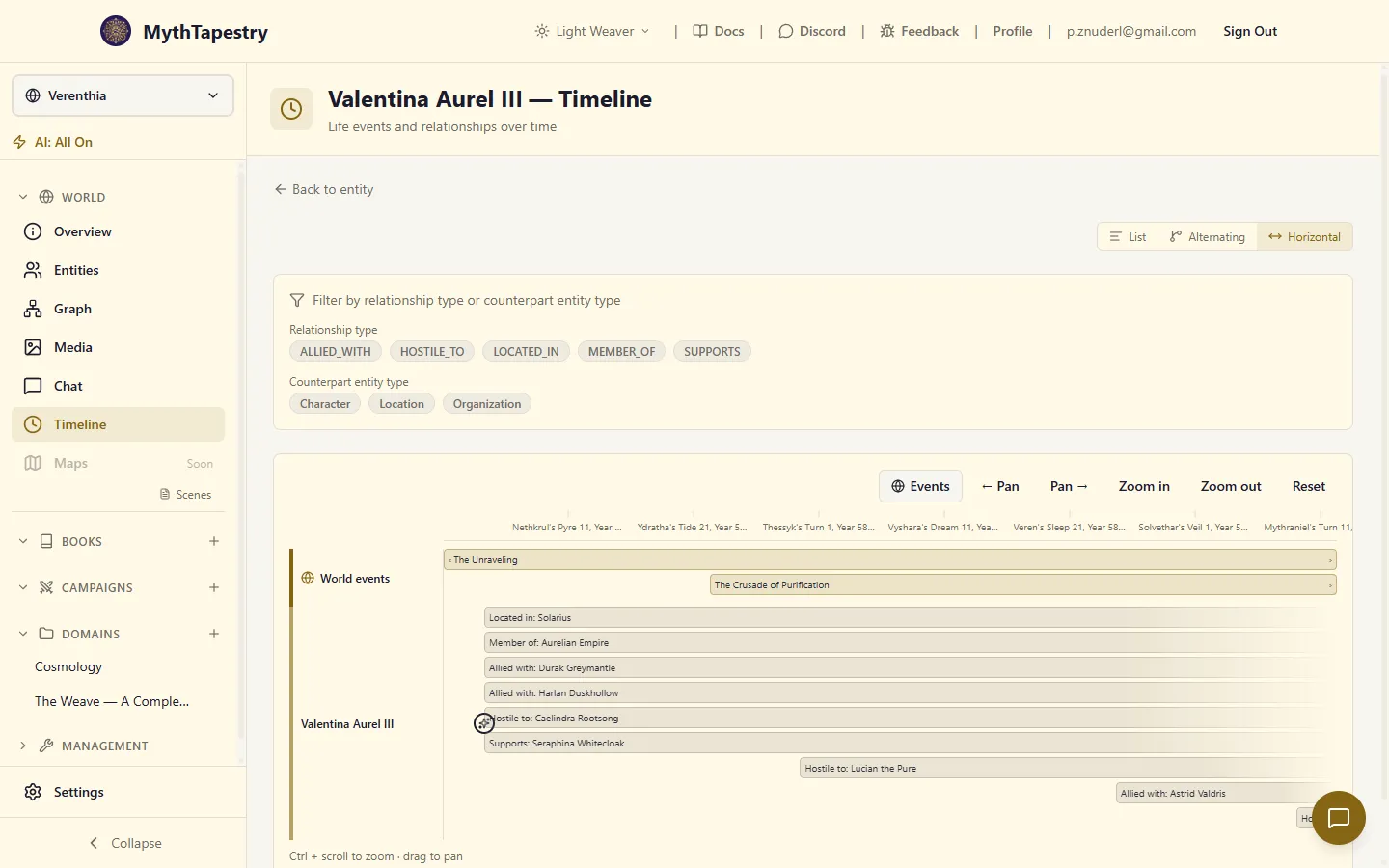
Section titled “Horizontal view”A time axis running left to right with each entry placed at its actual date. Best for spatial questions: “what was happening at the same time?”, “how long did this last?”, “what overlapped with what?”
The horizontal view adds a calendar ruler at the top and a dedicated World events track between the ruler and the focal entity’s lane. So if your character was alive during The Unraveling, you’ll see The Unraveling sitting above their relationships on the same time axis.
Panning and zooming the horizontal view
Section titled “Panning and zooming the horizontal view”| Action | How |
|---|---|
| Zoom in/out | Ctrl + scroll anywhere on the timeline |
| Pan back and forth | Click and drag the timeline surface |
| Jump back to the full range | Reset button in the toolbar |
| Precise pan | ← Pan / Pan → buttons |
The viewport starts framed on the entity itself — if your character lived years 5640–5727, you’ll open into that window with a little breathing room on each side, not at year 0. Reset always returns to that auto-fit view.
Filtering relationships
Section titled “Filtering relationships”Above all three views is a filter bar with two rows of chips:
- Relationship type — only show
MEMBER_OF, only showHOSTILE_TO, etc. Useful for “show me all of this person’s alliances” or “show me only their family ties”. - Counterpart entity type — only show relationships with characters, or only with organisations.
Both rows let you select multiple chips. The filter only shows types this entity actually has — if a character has no MEMBER_OF relationships, you won’t see that chip.
When a filter is on and nothing matches, the page tells you so — and which chips you’d need to drop to see entries again.
Clicking entries
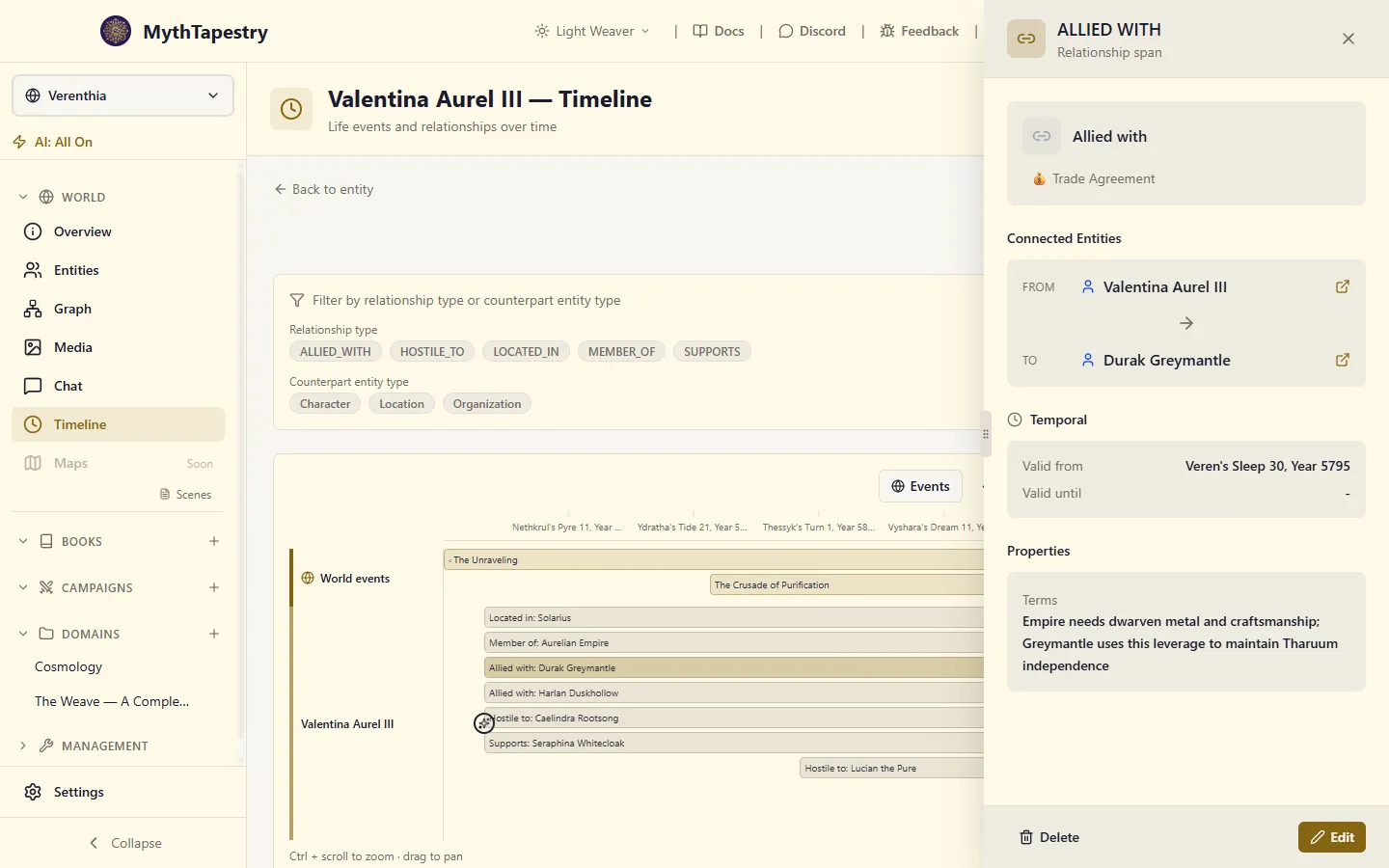
Section titled “Clicking entries”Every card, bar, and life-event icon is clickable. Selecting one opens a detail panel on the right with:
- For a relationship — type, both endpoints (each clickable to navigate to that entity), the full period, any custom properties (Mutual Defence terms, Rank, etc.), plus Edit and Delete actions in the footer.
- For a life event — the entity’s overview with Delete, View, and Edit actions in the footer (the same set you get from the entity-list sidebar).
The detail panel is one drawer — clicking a different entry replaces what’s shown. Closing it (X, Esc, or clicking outside) clears the selection.
World events on this view
Section titled “World events on this view”The horizontal view shows world events in their own track above the entity’s lane. By default they’re visible; toggle them off with the Events button in the toolbar if they’re getting in the way. The setting persists across visits.
Click an event bar to open its details in the right rail — same drawer pattern as relationships and life events.
Switching to the dedicated page
Section titled “Switching to the dedicated page”The Timeline tab on the entity detail page is embedded — it shares space with the rest of the entity’s tabs (Overview, Relationships, Mentions). For a focused, full-width view (better for long horizontal scrolling, or for sharing the URL), click Open in dedicated view → in the top-right. The dedicated view honours the same layout preference you’ve picked, so switching back and forth doesn’t reset anything.
Common questions
Section titled “Common questions”My character has dates set but the timeline is empty. Check that the dates are on the entity itself, not just mentioned in content. The timeline draws from the entity’s start/end date fields. If those are blank, even a heavily-mentioned character won’t appear.
A relationship I added isn’t on the timeline.
The timeline only shows relationships with at least a valid from date. Relationships without temporal bounds don’t have a place to land on the time axis.
The labels on the ruler are overlapping. They truncate with an ellipsis when there isn’t room. Hover any tick to see the full date.