
Navigating the UI
This page covers the main areas of the MythTapestry interface so you can orient yourself quickly.
Dashboard
Section titled “Dashboard”After logging in you land on the Dashboard. From here you can:
- View and manage all your worlds
- Create a new world
- Access your profile, AI model preferences, and subscription settings
Top navigation bar
Section titled “Top navigation bar”The dashboard top bar is always visible and contains:
| Item | Description |
|---|---|
| MythTapestry logo | Click to return to the dashboard home |
| Theme switcher | Toggle between light, dark, and system themes |
| Docs | Opens these documentation pages in a new tab |
| Discord | Join the MythTapestry community for feedback, discussion, and support |
| Feedback | Opens a GitHub issue to report bugs or request features |
| Profile | Your account settings, AI preferences, and API key management |
| Sign Out | Log out of your account |
On mobile, these items are accessible from the hamburger menu.
World view
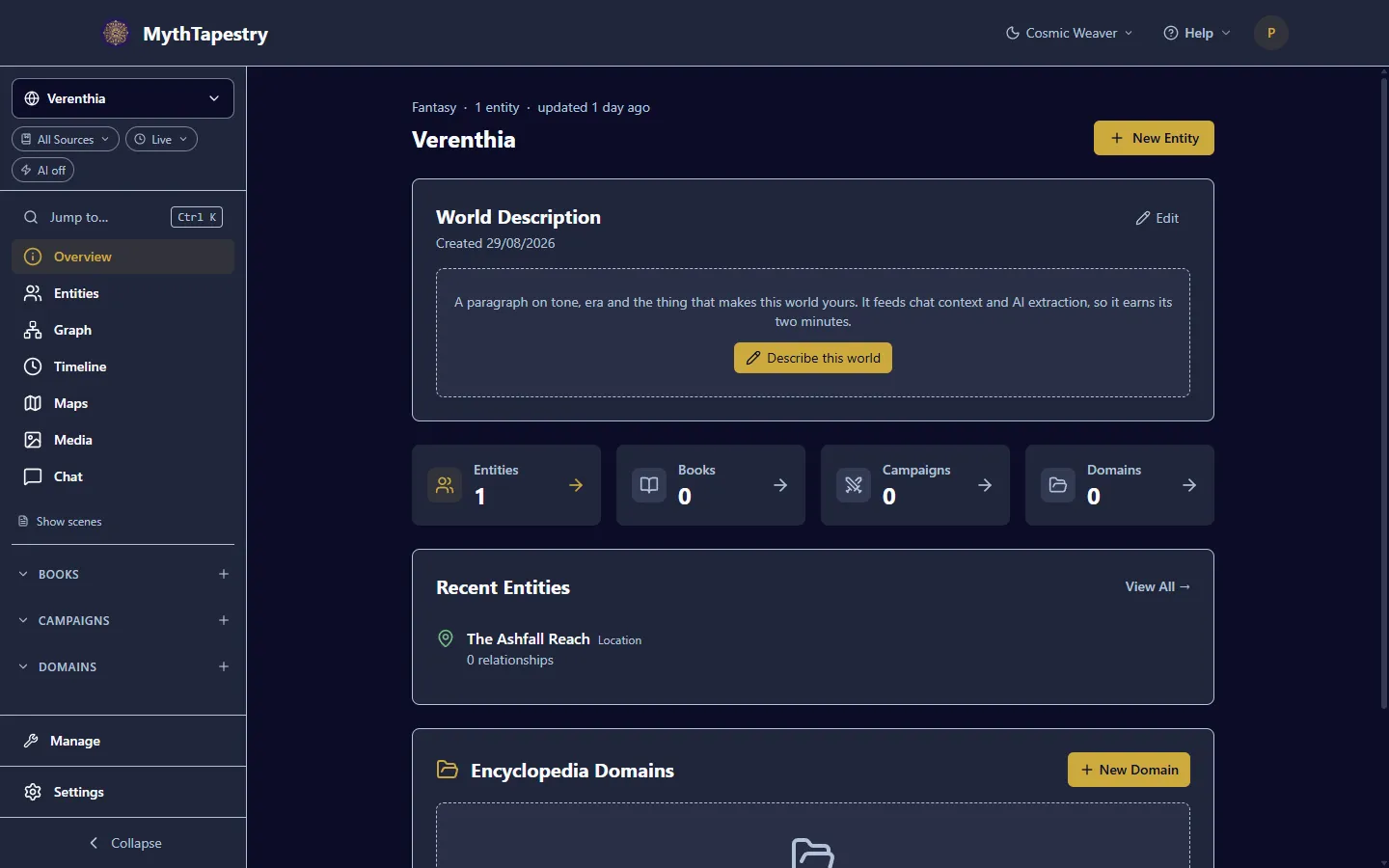
Section titled “World view”Once you enter a world, the layout changes to a sidebar + main content arrangement. The sidebar has four zones, and your library is the one that scrolls — so a world with two hundred chapters can never push your navigation off the screen.
Sidebar structure
Section titled “Sidebar structure”┌─────────────────────────┐│ Verenthia ▾ │ ← Which world, and its state│ All Sources · Live │├─────────────────────────┤│ Jump to… Ctrl K ││ Overview │ ← The seven views. Always here.│ Entities ││ Graph · Timeline · … │├─────────────────────────┤│ Books ││ Chapter One │ ← Your library. The only part│ Chapter Two │ that scrolls.│ Campaigns │├─────────────────────────┤│ Manage │ ← Configuration, and the way out│ Settings │└─────────────────────────┘Which world, and its state — the world switcher, plus a strip of chips saying which sources count, what point in world-time you are looking at, and whether AI is on.
The seven views — Overview, Entities, Graph, Timeline, Maps, Media, Chat. Pinned, because they are how you leave wherever the library scrolled you to.
Your library — every container type with its trees, children and scenes. This is the scrolling zone. (On a very short window the views scroll too, rather than pushing Manage and Settings off the bottom.)
Manage and Settings — pinned at the bottom, always one click away.
The state chips
Section titled “The state chips”Under the world’s name sit three chips. Their job is to answer, without you opening anything, the question what am I actually looking at?
| Chip | Default | What it does |
|---|---|---|
| All Sources | all sources counted | Filters the world to one canon — see Canon |
| Live | the world as it stands now | Views the world as of any past moment — see Viewing Your World in Time |
| AI off | no AI features enabled | Shows which AI features are on for this world |
A chip turns gold when its value is not the default. This matters more than it sounds. A world filtered to one canon and dated to the year 812 used to look exactly like an unfiltered live one — you could spend twenty minutes wondering where half your characters went. Now the sidebar says so.
Click any chip to change it. Each one opens a small popover in place.
Jump to anything
Section titled “Jump to anything”Press Ctrl K (⌘K on a Mac), or click Jump to… at the top of the views, and type.
It searches your entities, your containers and the seven views at once. Typing ash finds The Ashfall Reach; typing graph takes you to the graph. Arrow keys move through the results, Enter goes, Escape closes.
At thirty entities the sidebar tree is perfectly good. At four hundred it is not, and this is what you will end up reaching for.
World switcher
Section titled “World switcher”The world switcher at the top of the sidebar shows the name of your current world. Click it to:
- Switch to a different world
- Navigate to the worlds list to create a new world
What the AI chip tells you
Section titled “What the AI chip tells you”The AI chip reports whether AI features are enabled for this world.
| State | Chip reads | Meaning |
|---|---|---|
| All off | AI off | No AI features are enabled — the default for new worlds |
| Some on | AI 2/4 | Some features are enabled |
| All on | AI on | All AI features are active |
Click it for a breakdown of each feature:
- Entity Detection — Detects entity mentions in your writing
- AI Extraction — Uses AI (instead of local GLiNER) for more accurate detection
- Relationship AI — Suggests relationships between entities based on your content
- Chat Widget — Shows a floating chat bubble for quick AI conversations
The popover links straight to Configure AI Settings on the World Settings page.
The seven views
Section titled “The seven views”Pinned above the library, in the order you are most likely to want them.
| Item | Description |
|---|---|
| Overview | World summary with stats, recent activity, and quick links |
| Entities | Browse, search, and manage all entities (characters, locations, items, etc.) |
| Graph | Interactive knowledge graph showing entities and their relationships |
| Timeline | Multi-entity tracks view for comparing lifespans, relationships, and world events on a shared time axis (details) |
| Maps | Living maps that draw your places and people from the graph and move through time (details) |
| Media | Image gallery for your world’s visual assets |
| Chat | Full-page AI chatbot with session management — ask questions about your world |
Your library
Section titled “Your library”Each root container type gets its own collapsible section. The default types are:
| Section | Purpose |
|---|---|
| Books | Novels and stories — contains chapters, which contain scenes |
| Campaigns | TTRPG campaigns — contains sessions, which contain segments |
| Encyclopedia | Knowledge domains — contains articles |
Each section shows its containers as a tree. You can expand containers to see their children and content units. A + button on each container lets you quickly create new child items.
Manage
Section titled “Manage”Eight configuration screens, behind one Manage row at the bottom of the sidebar. Click it and they fly out.
They live behind a row rather than in the list because you will open Calendars a handful of times and your chapters a thousand — and the eight of them used to take up the same vertical space as eight chapters, in the same scroll.
| Item | Description |
|---|---|
| Entity Types | Configure which entity types are available and their subtypes |
| Relationship Types | Browse and manage the relationship type catalog |
| Bulk Relationships | Create many relationships at once between entities |
| Content Types | Configure content unit types (scenes, segments, articles) |
| Calendars | Create and manage custom calendar systems |
| Date References | View all temporal references extracted from your content |
| Canon | Manage canon sources for multi-canon worlds (details) |
| Conflicts | Track contradictions and continuity issues (coming soon) |
Settings
Section titled “Settings”The Settings link is pinned at the bottom of the sidebar so it’s always accessible. It opens the World Settings page where you can configure:
- Demo data management
- Custom writing environment (typography, colors)
- Smart entity detection (method, triggers, thresholds)
- Chat widget toggle
- Danger zone (world deletion)
Collapsing the sidebar
Section titled “Collapsing the sidebar”Click the Collapse button at the very bottom of the sidebar to switch to icon-only mode. This gives you more room for content editing and graph exploration.
In collapsed mode:
- The world switcher shows a globe icon — click to go to the worlds list
- The state chips become icons, keeping their gold non-default colouring
- Jump to… becomes a magnifying glass, and Ctrl K still works
- All navigation items show only their icons with tooltips on hover
- Manage becomes a wrench; its flyout still opens with every label
- Settings remains accessible as a gear icon
Mobile navigation
Section titled “Mobile navigation”On smaller screens, the sidebar is hidden by default. Tap the menu button (top-left) to open it as a slide-out drawer. A bottom navigation bar provides quick access to the most common pages.
Page headers
Section titled “Page headers”Most pages have a page header with the page title and action buttons (e.g. “Create Entity”, “Save”). Secondary actions appear to the left of the primary action.