
Reading Your Book
A world you’ve written deserves to be read like a book, not scrolled through like a form. The reader puts everything else away: no sidebar, no toolbar, no fields. It’s your prose, set the way you like it, from the first line to the last. Use it to read a draft the way your readers will, or to catch a clumsy paragraph you’d never notice in the editor.
Your readers get the same reader when they open a book you’ve shared with them.
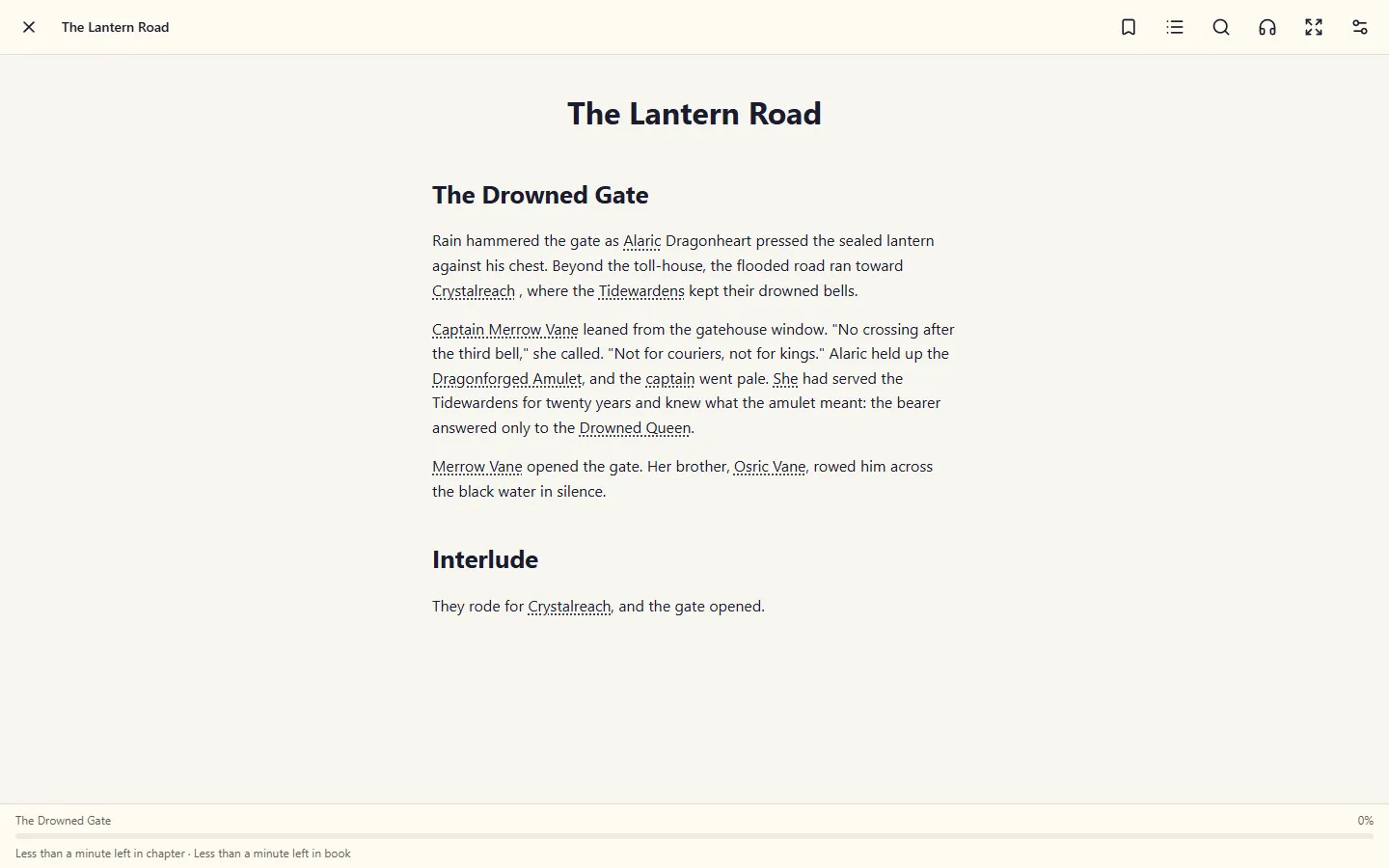
Opening a book
Section titled “Opening a book”You can start reading from anywhere in your writing:
- On any book, act, chapter or campaign page, click Read in the header. It opens at the start of that container, with everything inside it in order. Once you’ve started, the button becomes Continue reading · 42% and opens where you left off.
- In the scene editor, the book icon in the toolbar (Read this piece) opens the reader at that scene, inside its chapter, so you can keep going past it.
- Readers find Read and Continue on every book and chapter in their Library.
If a book won’t open because your connection dropped, the reader says so and offers Try again. It only says a book isn’t available when it really has been moved or deleted, or is no longer shared with you.
Close the reader with the ✕ at the top left. It takes you back to wherever you opened it from. If you opened it from a link someone sent you, there’s nowhere to go back to, so it takes you to the world instead.
Scroll or pages
Section titled “Scroll or pages”Pick how you read under Reading settings → Reading:
- Scroll is one long page, like a web article. Scroll with your finger, mouse wheel or the arrow keys.
- Pages lays the text out in pages and turns them like an e-reader. To turn a page:
- tap or click the right third of the page for the next page, and the left third for the previous one;
- swipe left or right;
- press
→,←,PageDown,PageUporSpace.
Either way, a tap in the middle of the page (or Esc) hides the bars so there’s nothing but text. Tap again to bring them back.
On a screen at least 1000px wide, Two pages side by side shows a spread, like an open book:
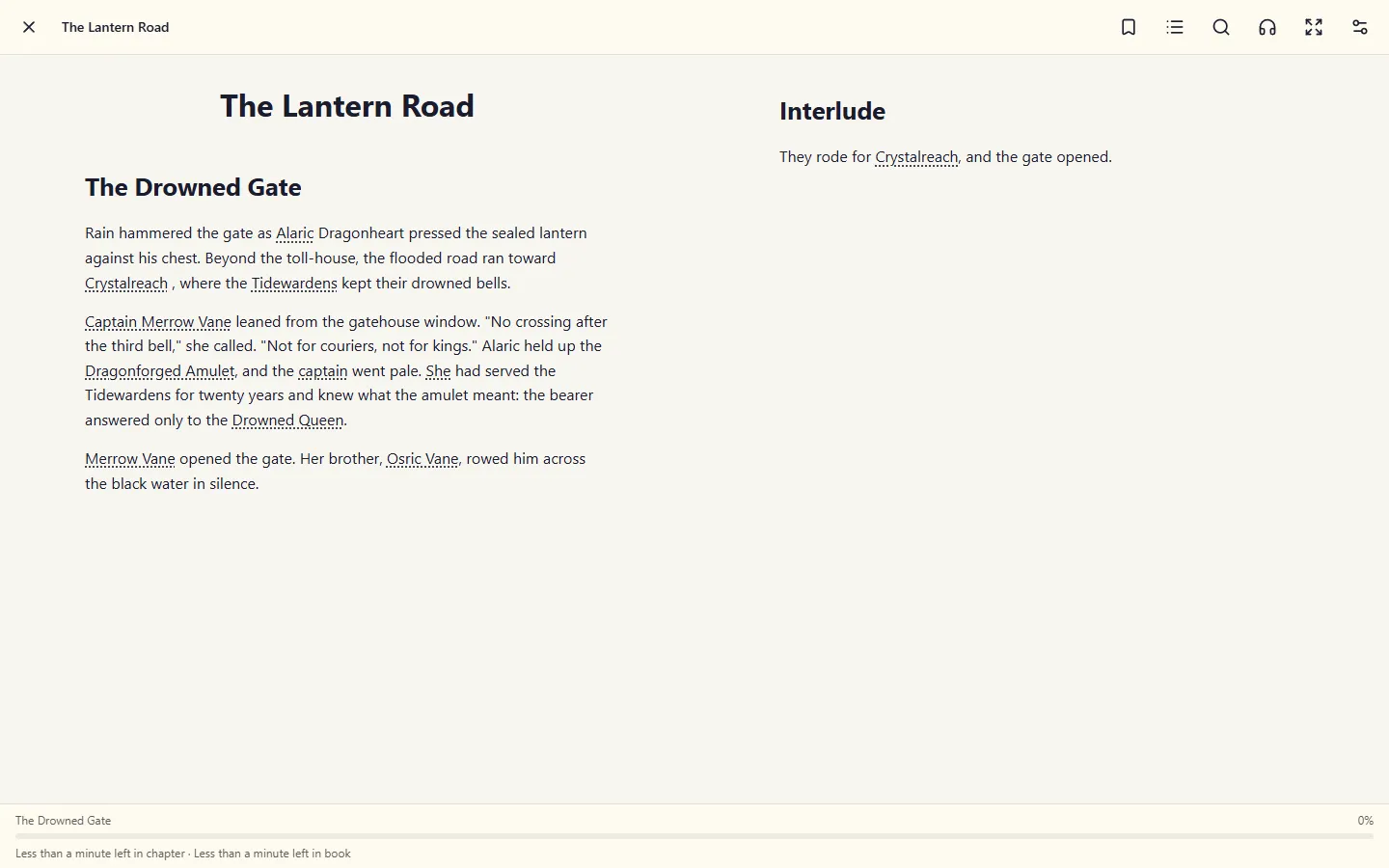
Each chapter heading starts a new page. A run of headings, such as a part followed by its first chapter, shares one page.
Contents, bookmarks and search
Section titled “Contents, bookmarks and search”- Contents (the list icon) shows every part, chapter and scene, nested the way you built them, with the one you’re reading marked. Tap any of them to jump there. Its Bookmarks tab lists your bookmarks with the chapter each is in.
- Bookmark (the ribbon icon) marks the spot you’re reading. It fills in when there’s a bookmark on screen; tap it again to remove that bookmark. You can also delete bookmarks from the Bookmarks list.
- Search (the magnifying glass) finds words anywhere in the book and lists each hit with its chapter, in book order. Pick one and the reader jumps there and briefly highlights the words. A common word can turn up in hundreds of scenes, so the list stops at the first 50 and says how many there are in all; add another word to narrow it down.
Progress and time left
Section titled “Progress and time left”The footer shows the chapter you’re in, how far through the book you are, and how long is left in the chapter and in the book. Time left starts from an average reading speed and learns your own as you read, so after a chapter or two it’s yours rather than everyone’s.
Picking up where you left off
Section titled “Picking up where you left off”The reader remembers your place down to the paragraph, not the page, so it survives a new text size, a turned tablet or a switch between scroll and pages. Your place is saved to your account as you read, so it follows you to other devices.
When you open a book, the reader starts where this device last was. If you’ve read further on another device, a message offers to Jump there.
The address in the browser follows the scene you’re reading too. Reload the page, or bookmark it in your browser, and you come back to the same paragraph.
Reading settings
Section titled “Reading settings”Reading settings (the sliders icon) changes how the book looks. Changes apply at once, and they’re saved to your account so every device reads the same way.
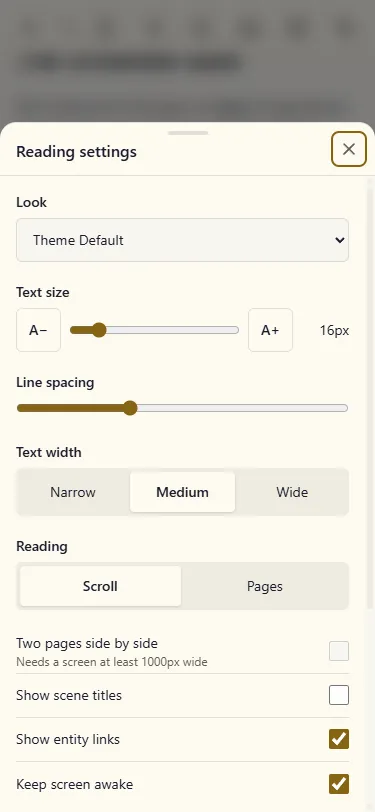
- Look starts from the same presets as the writing environment, including Low Vision, Dyslexia Friendly, Parchment and your own custom presets. The reader keeps its own copy, so a large-print look for reading on the sofa doesn’t change your editor.
- Text size goes from 12px all the way to 40px, for reading on a tablet at arm’s length.
- Line spacing and Text width (narrow, medium or wide) adjust how much text sits on a line.
- Show scene titles heads each scene with its title. When it’s off, scenes are separated by a small ⁂, the way most novels do it.
- Show entity links underlines the characters, places and things you’ve linked. Tap one for a short card about it, with a link to its page.
- Keep screen awake stops your phone or tablet dimming while you read.
- More text settings holds the rest of the writing environment’s options: font, letter and word spacing, paragraph spacing, weight, alignment, letter case, and page and text colours.
Full screen (the arrows icon) hides the browser’s own bars as well, where your browser allows it.
Reading order
Section titled “Reading order”The reader goes through a container in the same order as its Contents tab: everything in the first part, then everything in the next, at any depth.
The reader follows the order on the container’s Contents tab, where parts and loose scenes share one list. A Prologue scene dragged above Part 1 is read first; an Epilogue dragged below Part 3 is read last.
Want to hear the book instead? See Read Aloud.